

Charts
Exploring version history
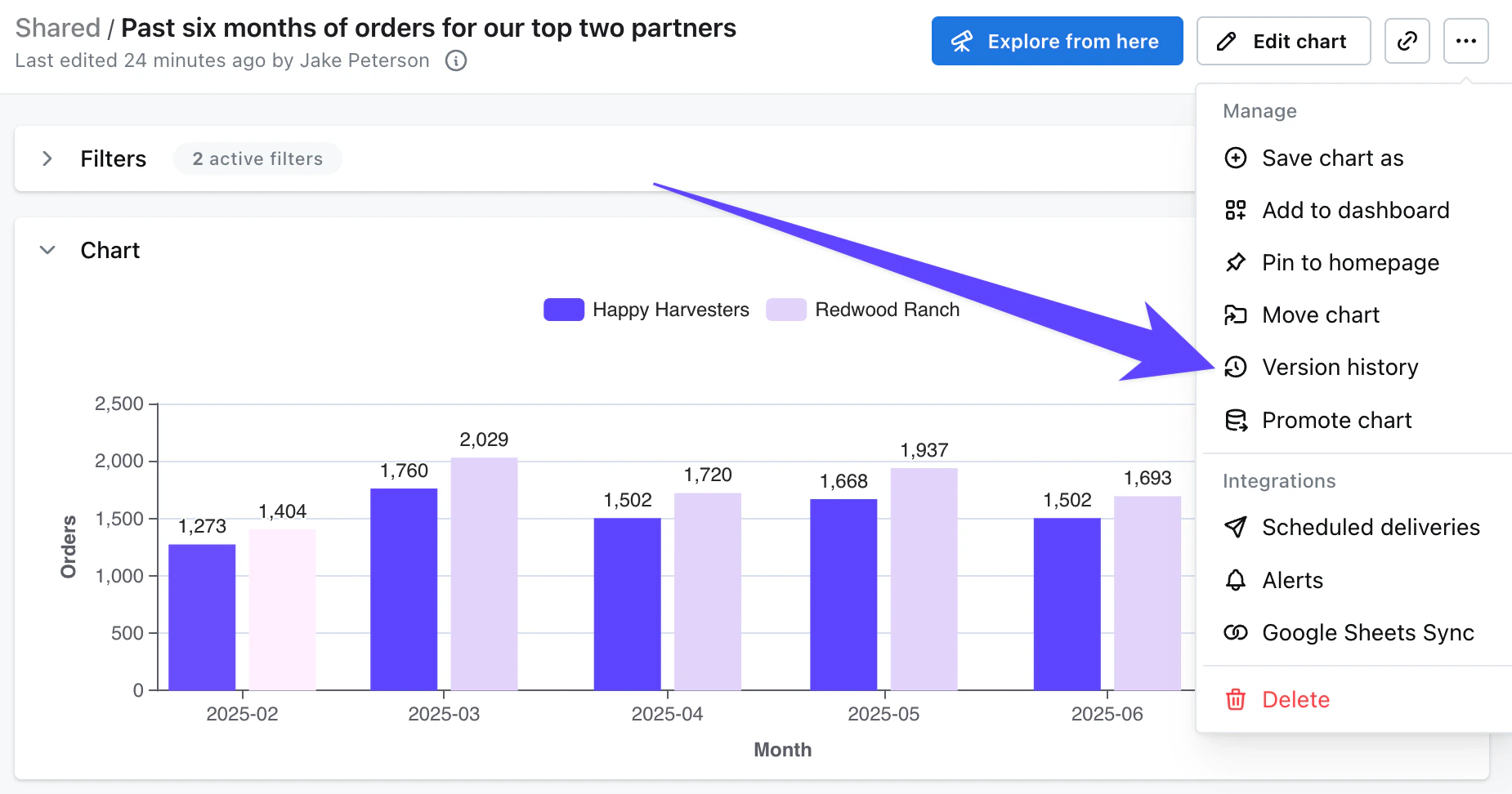
To access version history, click on theVersion History option under the three dot menu when viewing or editing a chart.
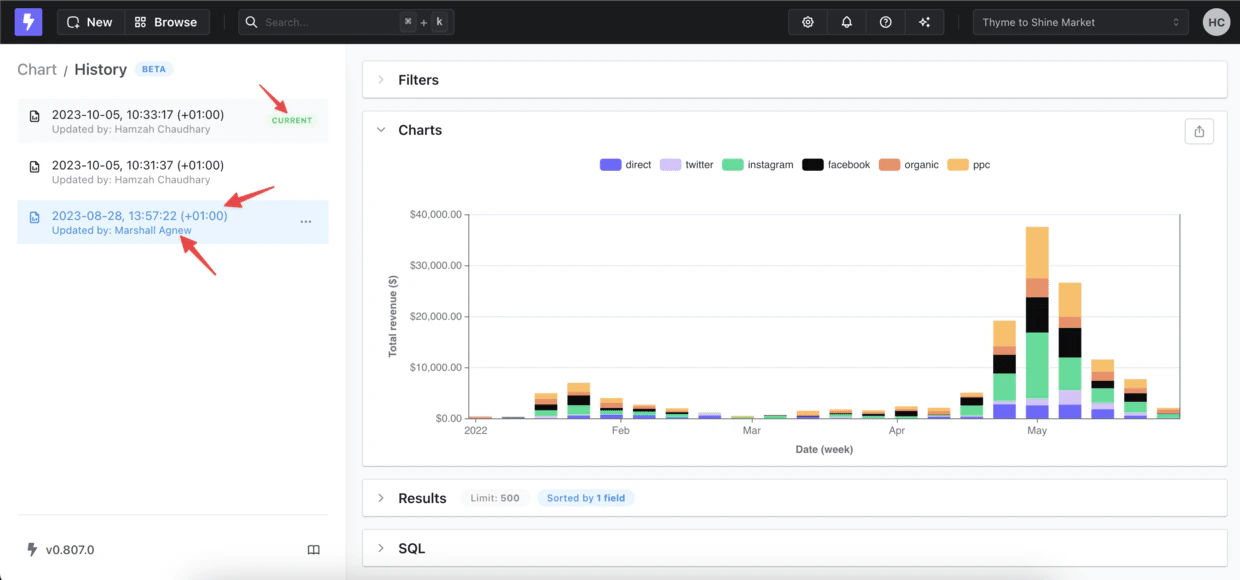
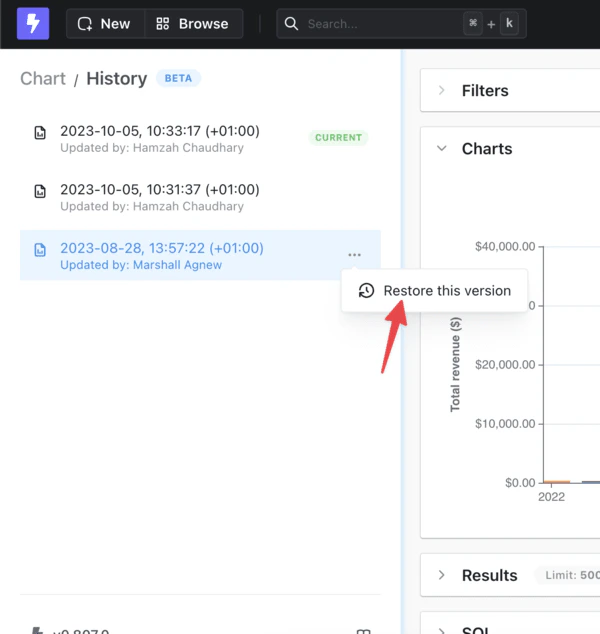
Lightdash saves all iterations of your chart, so reverting to a previous version does not delete any existing history.
Dashboard + charts
Rolling back a dashboard to a previous version rolls back every chart saved within that dashboard, not just the layout, filters, and tile positions. Pick any point in your dashboard’s history and get the exact view your users saw back then: same chart configs, same fields, same formatting.Only charts saved within the dashboard are affected by a rollback. Charts saved in a space are not changed when you restore a dashboard version.
- Open the dashboard you want to restore.
- Click the three-dot menu and select Version History.
- Browse previous versions and click one to preview it.
- When you find the version you want, click the three-dot menu next to it and select Restore.
Restoring a dashboard version also restores every chart saved within that version. Any changes made to those charts after the selected version will not appear once you roll back.
Missing some versions?
Version History is limited depending on the tier of Lightdash Cloud you’re using:- Cloud Pro: 30 days
- Cloud Enterprise: 60 days