

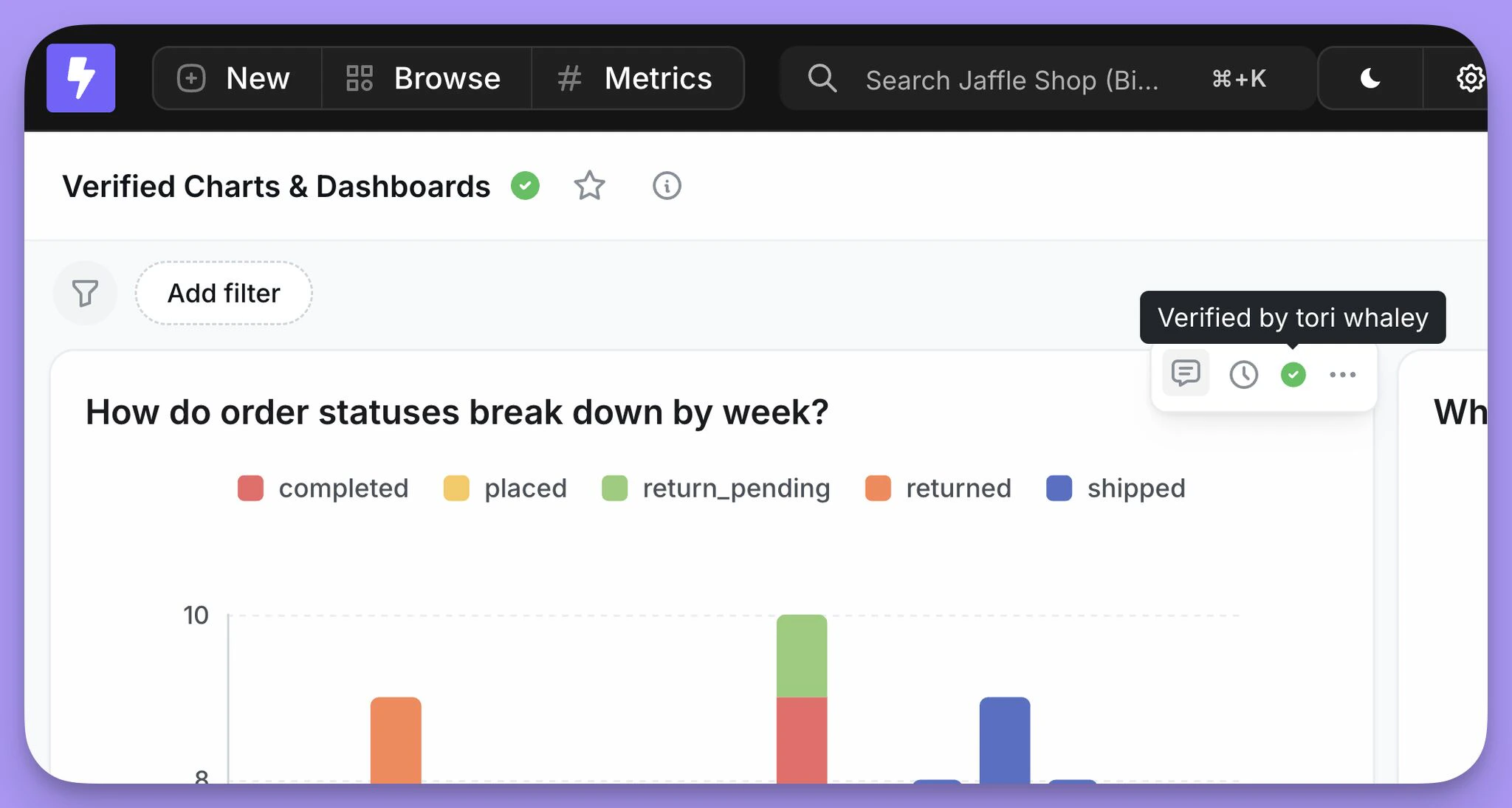
Who can verify content
Only organization admins and project admins can verify or unverify charts and dashboards. All other users can see which content is verified, but cannot change verification status themselves.Verifying a chart or dashboard
Admins can verify content directly from the chart or dashboard, or from the verification panel in project settings. Admins also have a dedicated verification panel under Project settings that lists all verified content and provides a central place to manage verification across the project.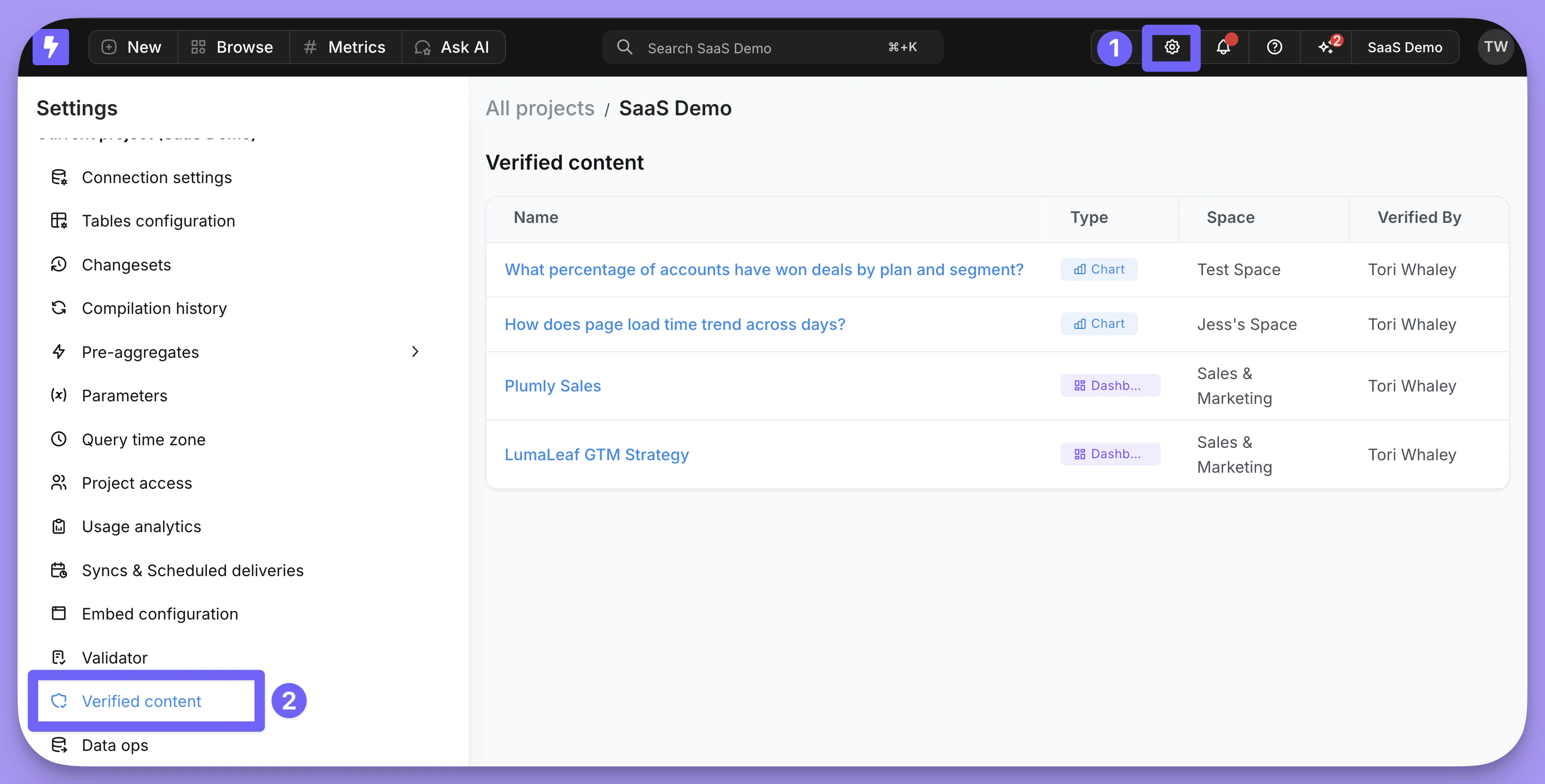
Where users see verified content
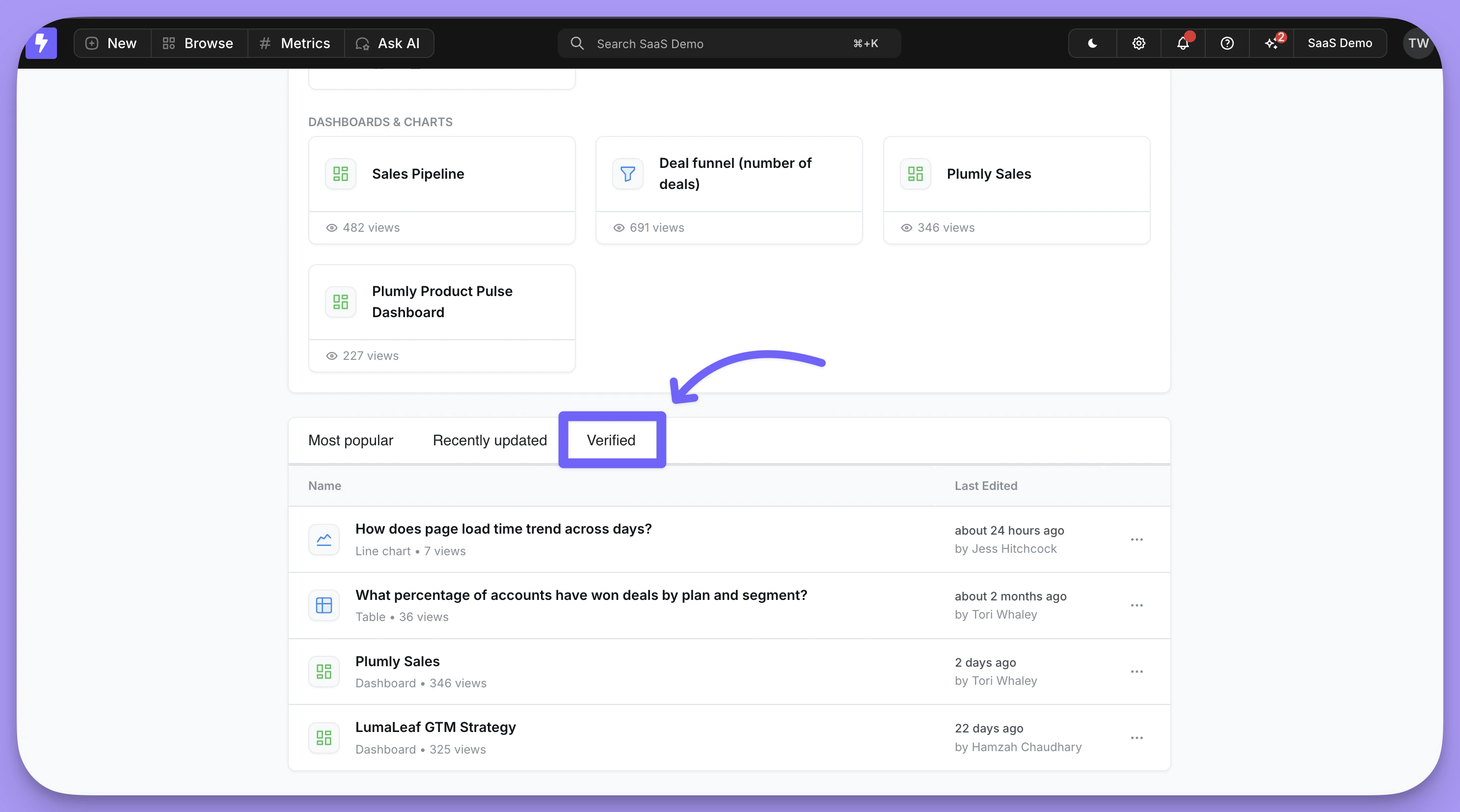
Once a chart or dashboard is verified, the green checkmark badge appears wherever that content is surfaced, including:- The homepage, so users can quickly spot approved content to start from
- Chart and dashboard listings
- Inside the chart or dashboard itself, along with the verifier’s name and verification timestamp
Verification is automatically removed when content changes
Verification is tied to the exact state of the content at the time it was verified. If anyone edits a verified chart or dashboard, the verification badge is automatically removed. An admin will need to review the updated version and re-verify it. This guarantees that a verified badge always reflects content that an admin has explicitly approved in its current form.Verification in charts and dashboards as code
Verification status is included in charts and dashboards as code. When you runlightdash download, verified content includes verification metadata in the YAML, and lightdash upload can apply or remove the verified badge based on what your YAML says.
Two fields: verification and verified
Verified content has two related fields in the YAML:
verification— read-only audit metadata showing who verified the content and when. Emitted on download for visibility in version control. Ignored on upload.verified— a boolean that controls verification state on upload. This is the field you edit to change verification.
lightdash download:
How verified behaves on upload
The verified field has three states:
| Value | Behavior on upload |
|---|---|
verified: true | Verifies the content. No-op if already verified. |
verified: false | Unverifies the content. No-op if already unverified. |
verified absent | Leaves verification state unchanged. |
verified line.
Permissions
Only users with permission to verify content (organization admins and project admins) can change verification state via the CLI. If you upload a YAML containingverified: true or verified: false but you don’t have verify permissions, the upload still succeeds — the rest of your changes go through, but the verification field is silently skipped and a warning is logged on the server.
This means CI pipelines run by non-admin deployers (for example, with the developer role) won’t fail just because a YAML file contains a verified field they can’t act on.